Connected Services
Drivest can connect to supported vehicle manufacturers to automatically fetch odometer and energy readings.
How It Works
Some vehicle brands offer official APIs that allow Drivest to read your odometer (and, for EVs, battery state of charge and fuel level) remotely. The list of supported manufacturers is shown in Settings > Integrations.
Setup — Volvo
Volvo uses OAuth 2.0 with PKCE. You first create a free developer app on Volvo’s portal (one-time, in a browser), then enter the credentials it gives you into Drivest and sign in to your Volvo account in-app.
Create a developer app at developer.volvocars.com
Volvo requires every user to authenticate against their own developer application — there is no shared key Drivest can ship. A Volvo Developers account is free and uses the same Volvo ID you already log into your car with.
Open https://developer.volvocars.com and sign in (create a Volvo Developers account if you don’t have one).
Go to your Account page (https://developer.volvocars.com/account/) and start a new API application.
Fill in all required fields. Two values matter for Drivest:
Redirect URI — enter exactly:
https://oauth.pstmn.io/v1/browser-callbackDrivest’s in-app sign-in (and the optional Python helper) both redirect here, so it has to match character-for-character.
Scopes — request the scopes that cover odometer, fuel, energy and (optionally) location:
openid
conve:vehicle_relation
conve:odometer_status
conve:fuel_status
conve:trip_statistics
energy:state:read
location:read
You can request fewer scopes later, but you can’t widen them without re-registering, so it’s easiest to ask for the full set up front. Later when you knwo what functions from volvo api is helpful for you restrict scope to needed minimum.
Finish the registration. At the end of the flow Volvo shows three values — copy them all:
- Client ID
- Client Secret
- VCC API Key
Personal use of the Connected Vehicle API and Energy API is free within Volvo’s published rate limits, which Drivest stays well under. Keep the three credentials handy for the next step.
Connect Drivest
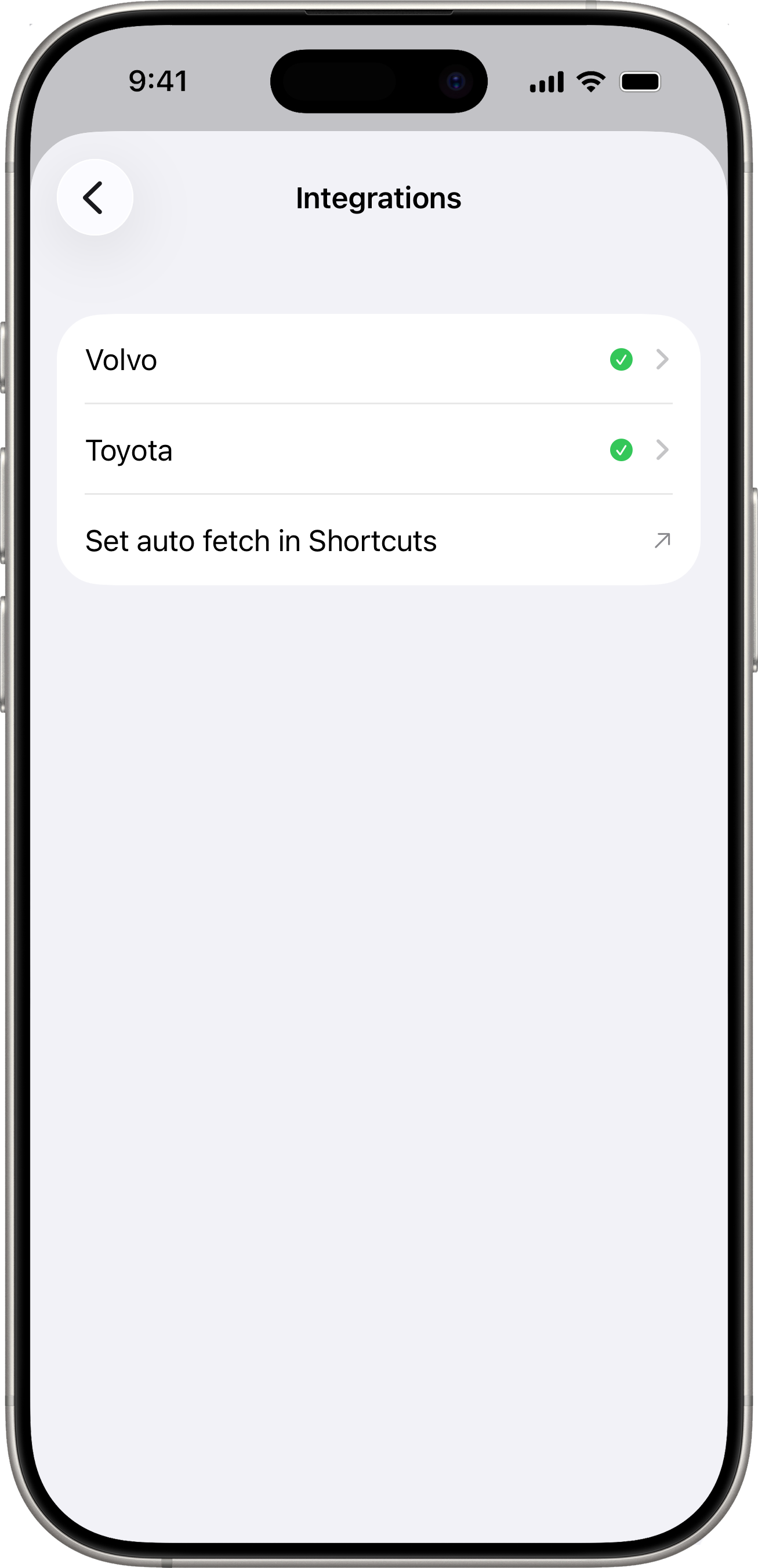
Open Settings → Integrations → Volvo.
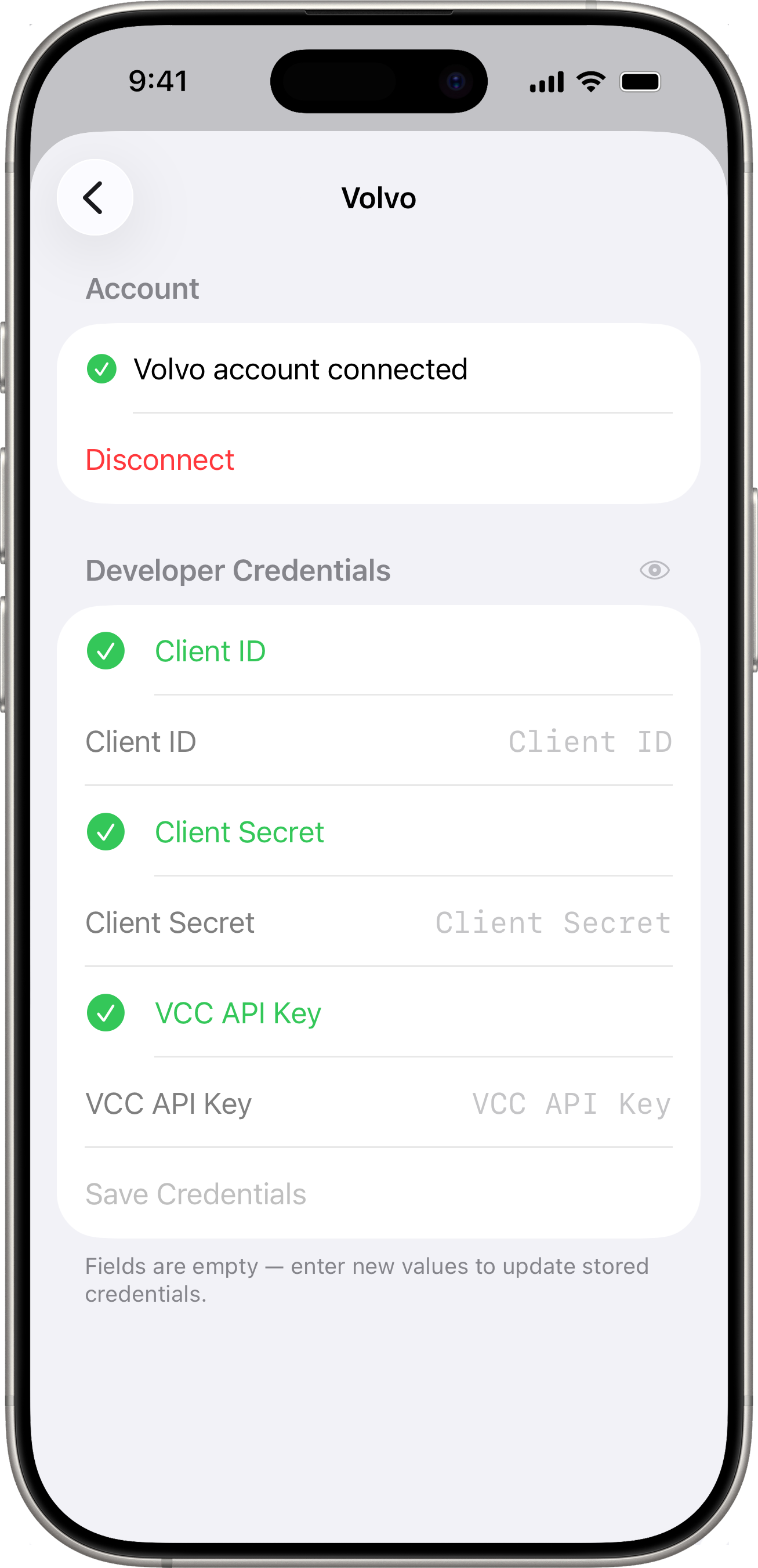
Expand the Developer Credentials section and enter the three values you copied from the portal:
- Client ID and Client Secret
- VCC API Key
Tap Save Credentials.
Tap the new primary Sign in with Volvo button.
A sheet opens with Volvo ID’s login page. Enter your usual Volvo account email + password (and any MFA challenge Volvo throws at you).
The sheet dismisses on its own the instant Volvo would redirect to its OAuth callback. Drivest captures the auth code, exchanges it for a refresh token in the background, and saves it to your device’s Keychain.
The view re-renders to “Volvo account connected” with a green checkmark.
If you tap Disconnect, only the refresh token is removed; your Developer Credentials stay so re-signing in is one tap away. Your Volvo account password is never seen or stored by Drivest — the in-app browser hands it directly to Volvo ID over HTTPS.
Volvo — power-user fallback
If you’d rather generate a refresh token from a terminal (e.g. in CI), the original Python helper still works:
python3 scripts/get_volvo_token.py
It performs the same PKCE OAuth flow against the same Postman callback URL Volvo’s portal already has registered. Paste the resulting refresh_token into the Advanced disclosure under the Volvo settings’ Account section (tap Paste from Clipboard → Save Token). The script header points back at the in-app flow as the recommended path.
Setup — Toyota
Toyota uses username/password authentication (not OAuth):
- Open Settings → Integrations → Toyota.
- Enter your Toyota app email + password.
- Drivest authenticates directly with Toyota — credentials are never seen by anyone else.
- An authentication token is stored securely in your device’s Keychain.
What It Does
- Odometer fetch on demand — when adding a fill-up, charging session, or cost, tap the download button next to the odometer field to pull the latest reading from your vehicle.
- Automatic odometer prefill on Cost entry — when you change vehicles in the Add Cost form and the vehicle has a configured integration, the odometer auto-populates from the latest snapshot.
- Energy snapshots for EVs — each fetch records an
EnergySnapshotrow with odometer + battery percent (+ fuel level when the API exposes it). The full history is browsable under Data → Readings. - Latest Reading card — the most recent snapshot summary is pinned to the top of the Data tab for connected EV vehicles. See Data → Latest Reading.
- Long-press the Latest Reading card → triggers a one-shot manual fetch.
Requirements
- Your vehicle’s Make must match a supported manufacturer.
- A valid VIN must be entered in the vehicle settings.
- You need an account with the manufacturer, with the vehicle linked.
Disconnecting
Go to Settings > Integrations, select the manufacturer, and tap Disconnect. This removes the stored refresh token from your Keychain. Developer Credentials (for Volvo) stay in place so re-signing in doesn’t require pasting them again.
Apple Shortcuts Integration
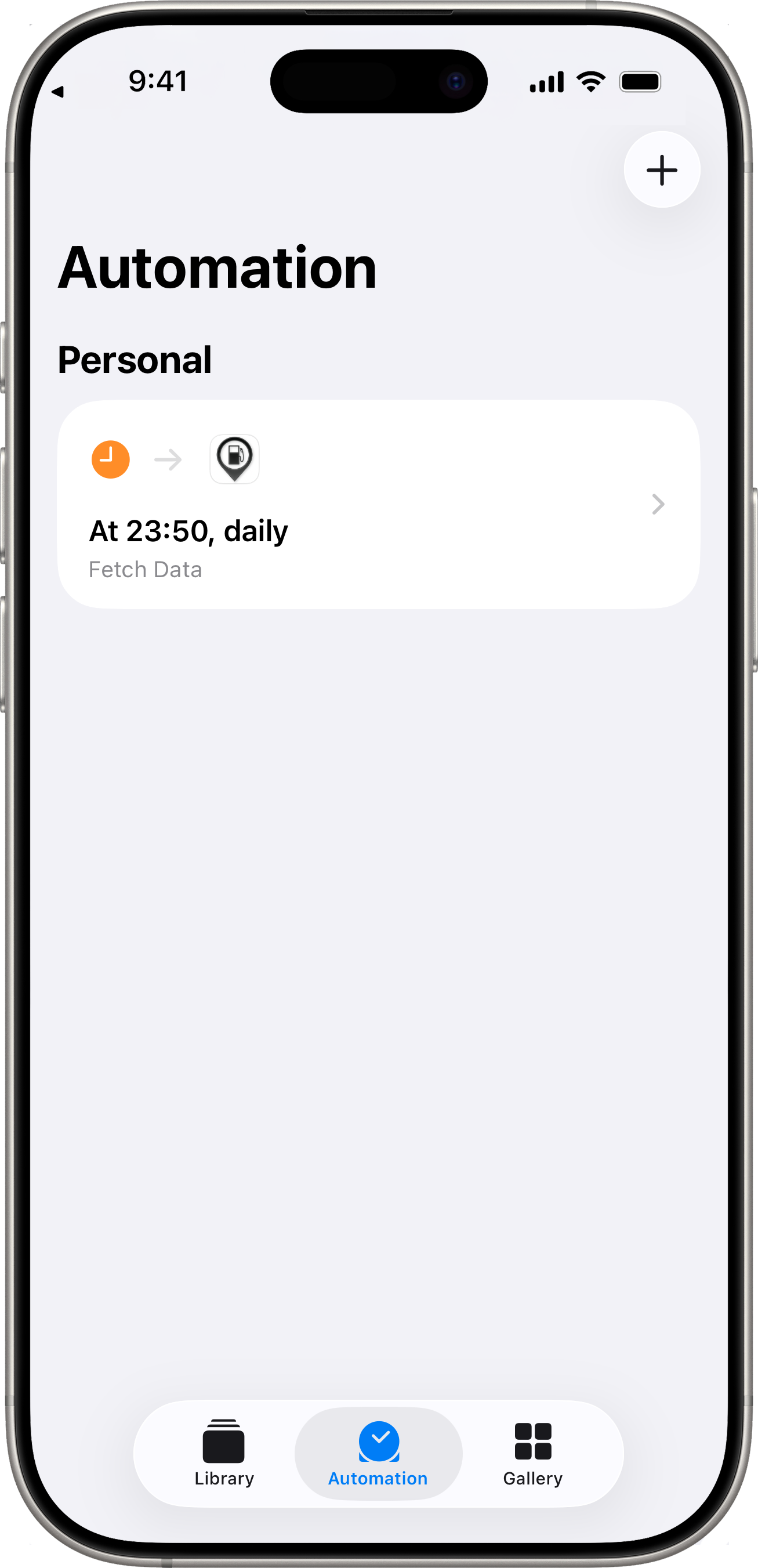
Drivest provides a Fetch Data action for Apple Shortcuts. This lets you automate data collection — for example, you can create one Shortcut that fetches your Volvo once a day, another that fetches your Toyota once a week.
Building a Shortcut
- Open the Shortcuts app on iPhone.
- New Shortcut (or new Automation for time-based scheduling).
- Add Action → search “Fetch Data” → tap the Drivest action.
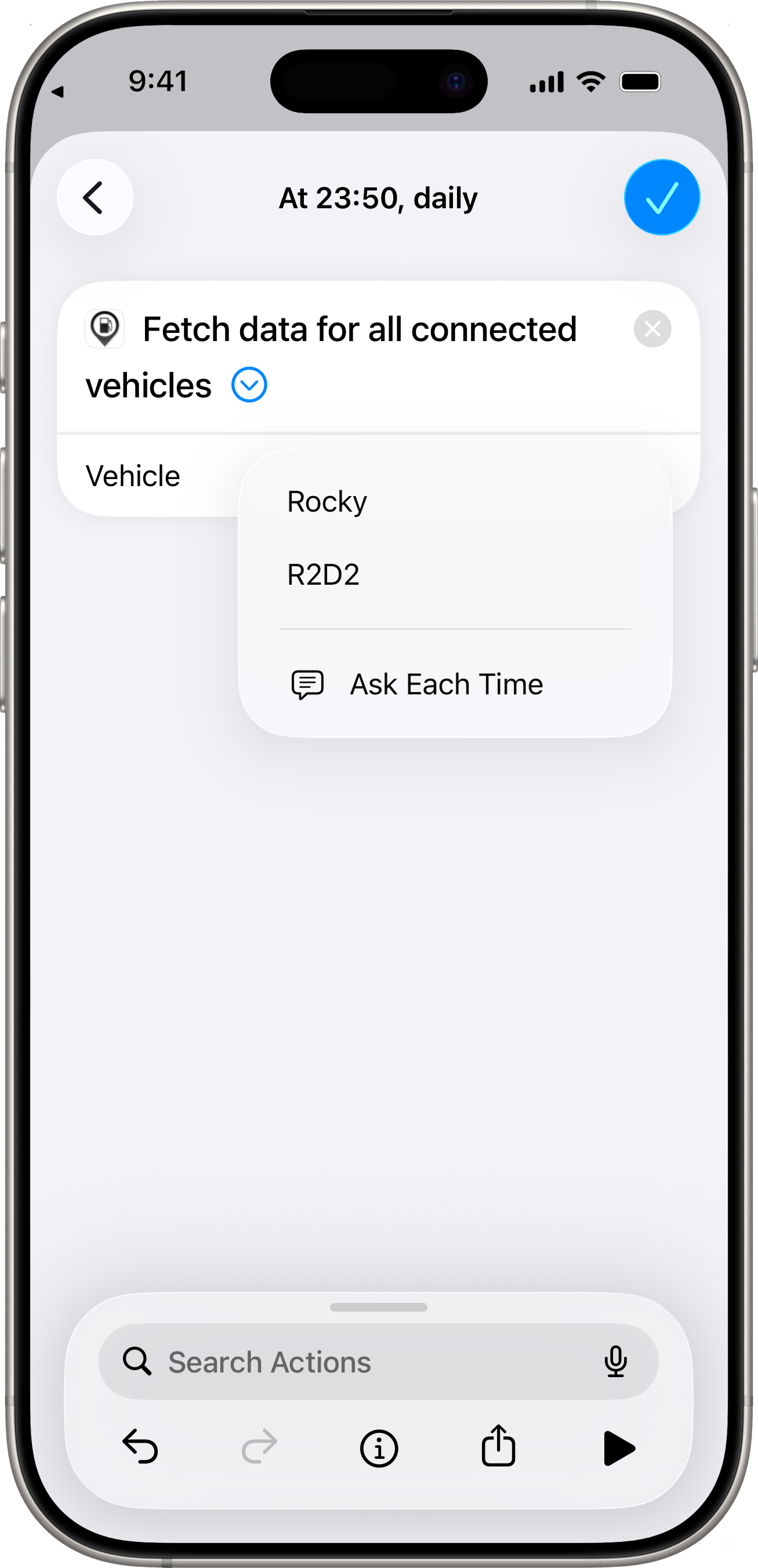
- The action now reads “Fetch data for [Vehicle]” with a picker placeholder.
- Tap the Vehicle picker:
- Pick a specific vehicle from the list (only connected vehicles appear) → the Shortcut targets just that one.
- Leave it blank → the Shortcut falls back to “Fetch data for all connected vehicles” in a single run.
- Set it to Ask Each Time → tapping the Shortcut shows a picker.
- Optional: pair it with a When → Time of Day automation trigger for unattended scheduled fetches.
A common setup:
| Vehicle | Schedule | Why |
|---|---|---|
| Volvo (daily driver) | Daily at 23:55 | Captures a fresh snapshot before the next morning’s commute |
| Toyota (weekend car) | Weekly Sunday at 09:00 | Lighter cadence to stay under API rate limits |
| Both at once | Manual tap | One-shot “sync everything” without scheduling |
The action returns a short status string — "Fetched data for [Vehicle name]" on success, an error message on failure — so you can pipe it into a Quick Look or Add to Note action if you want a log.
Note: an earlier Drivest build exposed this action as “Fetch Odometer”. If you had a Shortcut built against that name, it’ll appear broken after updating; re-add the Fetch Data action and pick your vehicle to fix it.
Reliability
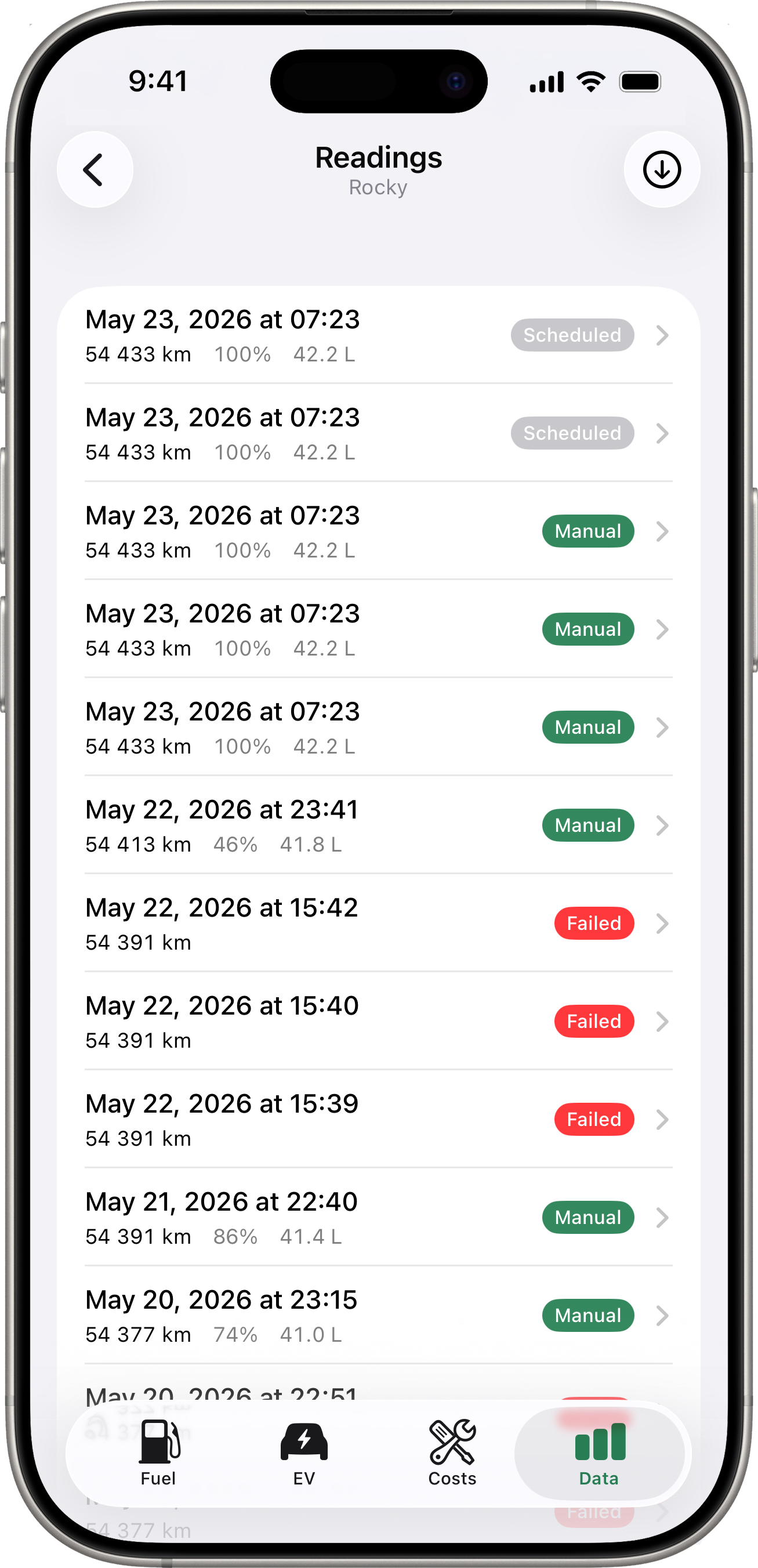
Every Shortcuts trigger creates a row in Data → Readings for the vehicle. The badge tells you how the fetch was triggered and whether it succeeded:
- Scheduled (grey) — a routine background or Shortcuts fetch that succeeded.
- Manual (accent) — a user-triggered fetch from inside the app (Latest Reading card long-press, the toolbar button on the Readings list, or the download button on an Add form).
- Failed (red) — the fetch reached Drivest but couldn’t complete. The row’s subtitle carries the underlying error message; common reasons include:
- Volvo / Toyota token not configured — no integration is set up for this make.
- Invalid API credentials. Check Settings → Integrations → Volvo. — the refresh token has been revoked. Open Volvo settings and tap Sign in with Volvo again to re-issue.
- Keychain locked — device must be unlocked at least once after boot — a background fetch fired while the device was still locked after a reboot. The next fetch after you unlock the device once will succeed.
- Manufacturer-side errors such as HTTP 429 (rate limit) or 5xx (server error).
If the API is rate-limited, temporarily unavailable, or the network drops, Drivest:
- Retries the call up to three times with a short back-off (1s, then 2s).
- If a Volvo call returns HTTP 401 (revoked or rotated access token), Drivest automatically invalidates its in-memory token cache, refreshes once, and retries — so transient session expiries don’t surface to you at all.
- If retries don’t recover, inserts a snapshot anyway with a red Failed badge and the underlying error message.
This means no Shortcuts trigger is silently dropped — every attempt leaves a visible record. Failed rows are kept indefinitely (or until the 2-year purge cutoff) so you can see attempts even when they didn’t succeed.
Privacy
All communication with manufacturer APIs happens directly between your device and their servers. The developer of Drivest never sees your credentials or vehicle data. The in-app sign-in for Volvo runs inside a WKWebView configured with a non-persistent data store, so no Volvo session cookies linger in app storage after you Disconnect. See the Privacy Policy for full details.