Getting Started
← All Documentation (v1.1)
You're viewing the docs for Drivest v1.1. View the latest documentation.
First Launch
When you open Drivest for the first time, the app will ask you to add your first vehicle. All data is stored locally on your device — there is no account to create and nothing to sign up for.
Adding a Vehicle
- Tap the + button on the main screen.
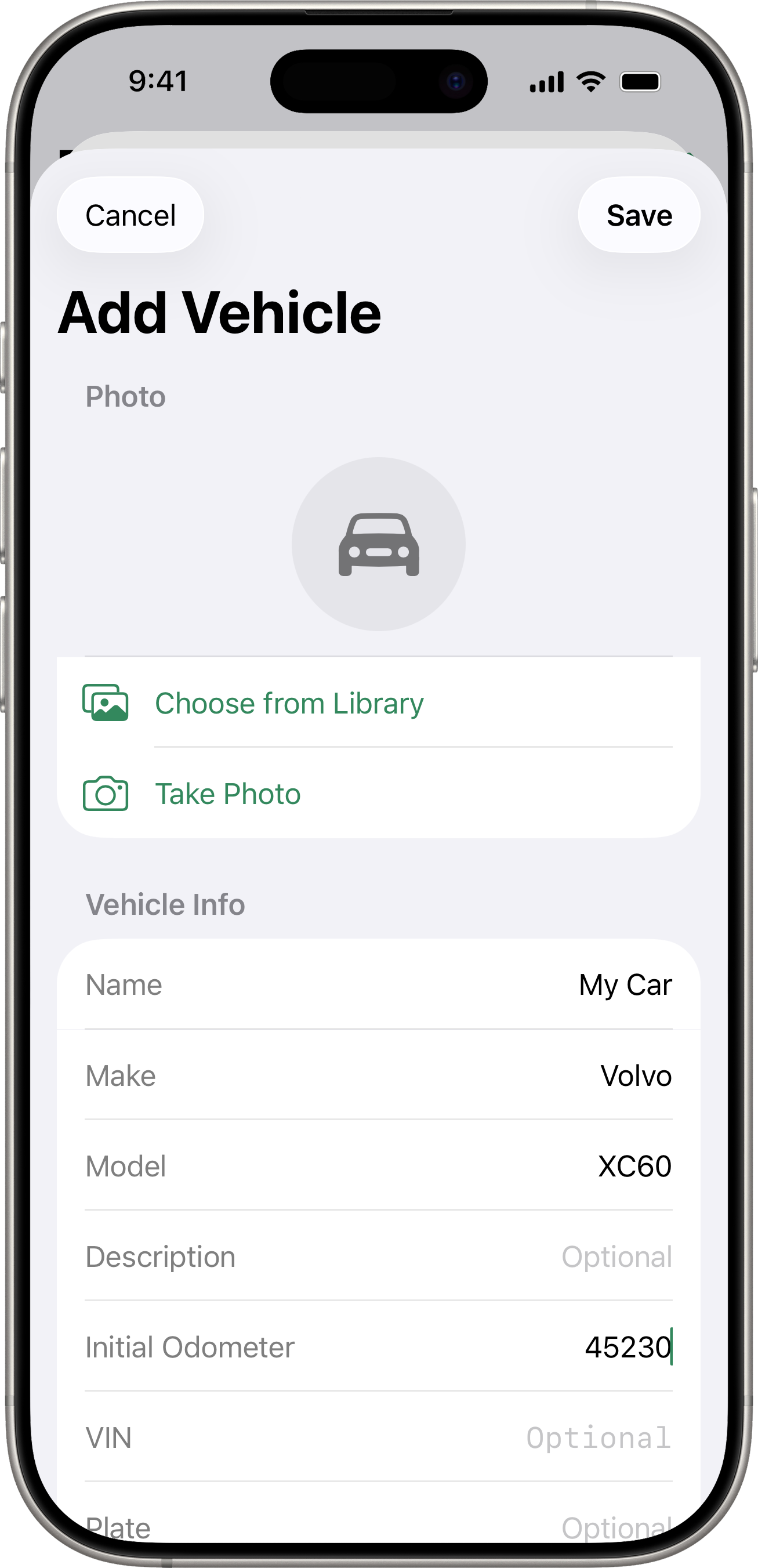
- Fill in the vehicle details:
- Name (required) — a label you will recognize, e.g. “My Golf” or “Family Car”.
- Make — the manufacturer (e.g. Volvo, Toyota, BMW). This is optional but required for connected services.
- Model — the specific model (e.g. XC60, Corolla).
- Description — any additional notes about the vehicle.
- VIN — Vehicle Identification Number. Required for connected service integrations.
- License Plate — your registration plate number.
- Initial Odometer — the current odometer reading when you start tracking.
- Photo — tap the photo area to take a picture or choose one from your library.
- Choose your preferred units:
- Distance Unit — kilometers or miles.
- Fuel Type — PB95, PB98, Diesel, LPG, CNG, or EV.
- Fuel Unit — liters, gallons, or kWh (for EV).
- Efficiency Format — L/100km, km/L, MPG (US), or MPG (UK).
- Optionally configure a second fuel tank (e.g. LPG + petrol, or petrol + EV for plug-in hybrids).
- Tap Save.
Navigating the App
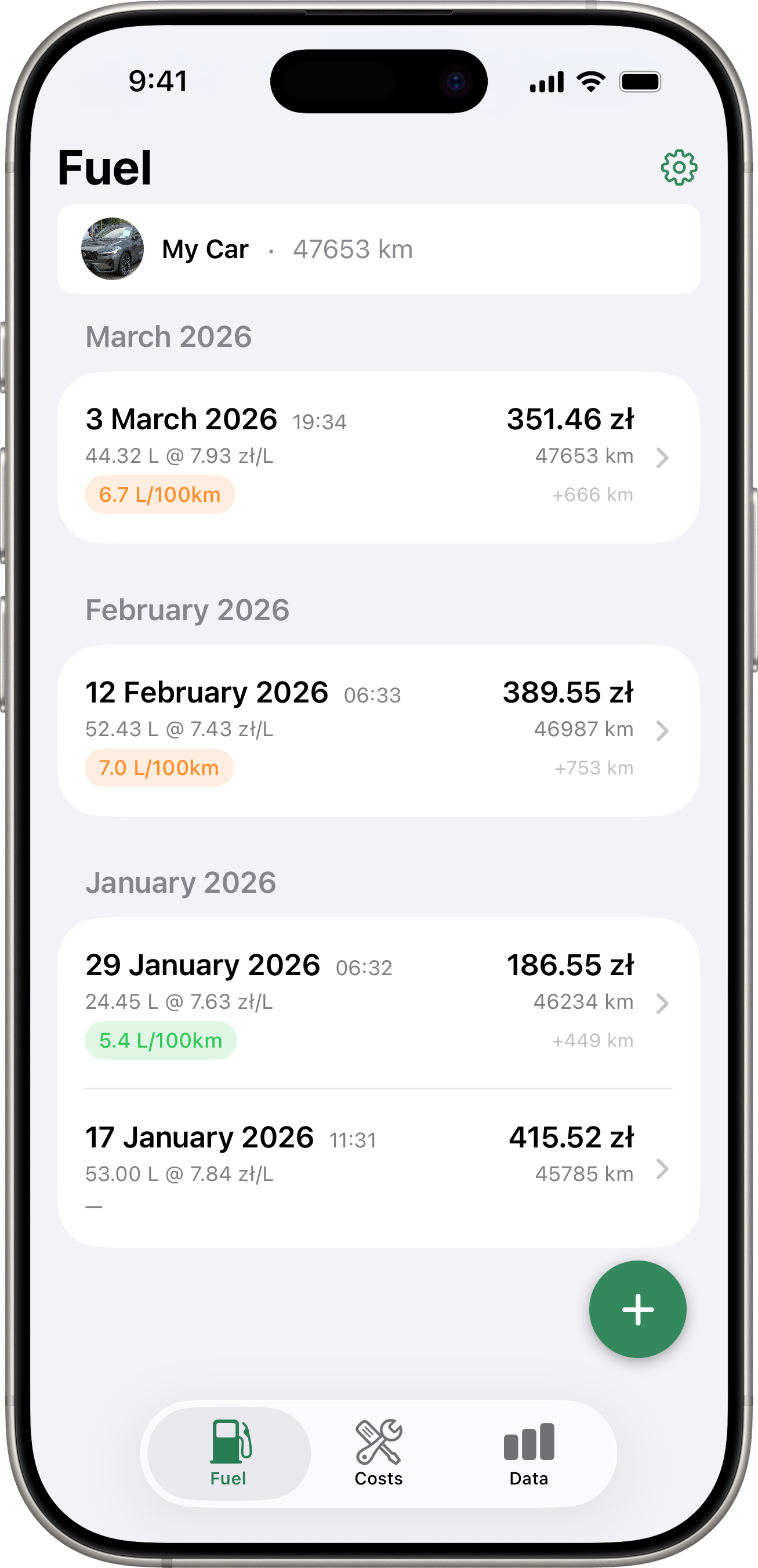
The app has three or four tabs at the bottom, depending on whether you have an EV vehicle:
- Fuel — your fill-up history and the button to add new fill-ups.
- EV — electricity bills and EV tracking (visible only if you have an EV vehicle).
- Costs — your expense records by category.
- Data — vehicle snapshot, period stats, charts, and a map of fill-up locations. See Data.
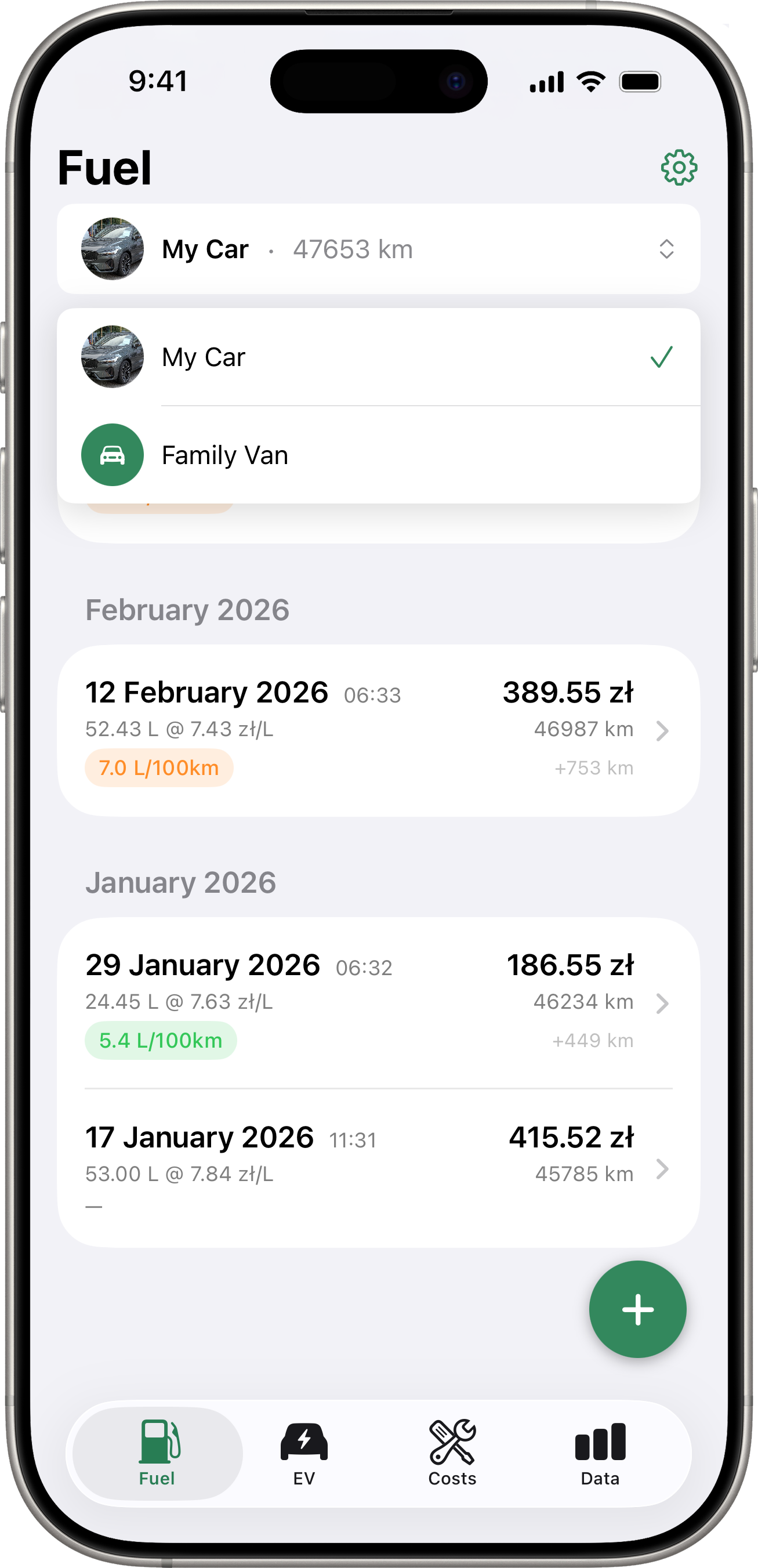
If you have multiple vehicles, use the vehicle picker card at the top of each tab to switch between them.
To access Settings, tap the gear icon in the top-right corner of any tab.
Multiple Vehicles
You can track as many vehicles as you need. Add more vehicles from Settings > Manage Vehicles, then use the vehicle picker at the top of each tab to switch between them.